
Front Door Security
See who’s there, secure every way in, and let your home respond to every arrival.


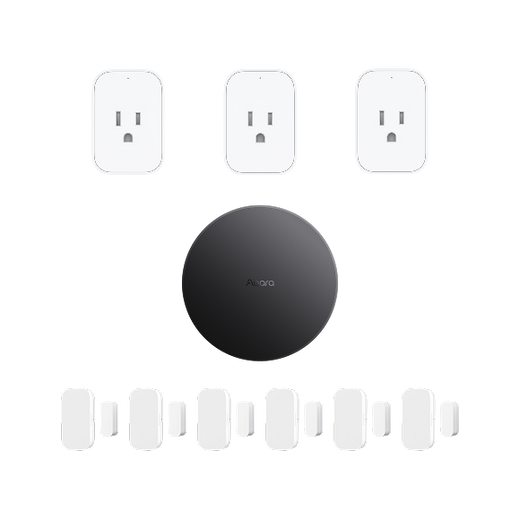
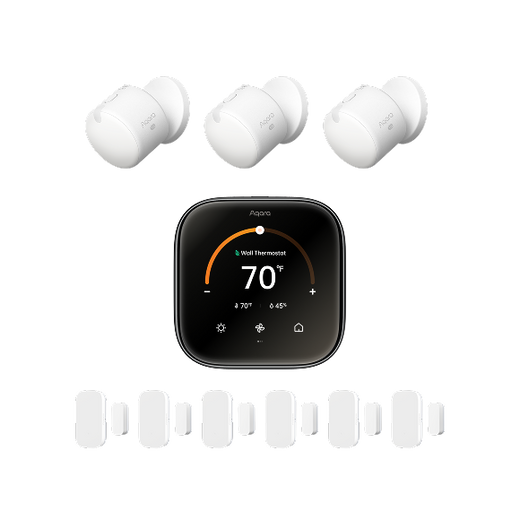
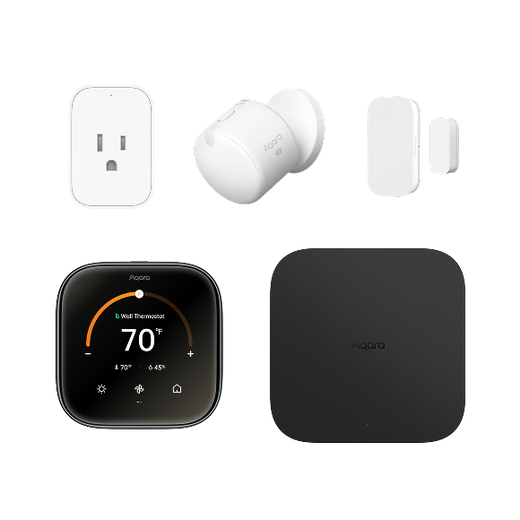

Imagine this: you're all set to unwind after a long day, looking forward to using your smart home devices to create the perfect relaxing ambiance. You reach for your phone to dim the lights, play some soothing music, and adjust the temperature, but nothing happens. Your smart hub, the central nervous system of your smart home, seems to be on the fritz. Frustrating, right?
If you've found yourself in this situation, you're not alone. Many smart home enthusiasts encounter issues with their smart hubs at some point. In this comprehensive guide, we'll explore why your smart hub might not be working, provide a step-by-step troubleshooting guide, introduce you to some top-notch Aqara hub alternatives, and answer frequently asked questions. By the end, you'll be well-equipped to get your smart home back in working order.
One of the most obvious signs of a problem with your smart hub is that your smart device stops responding to commands. For example, you might try to turn on a light, but it remains off; or you might try to adjust a thermostat, but the temperature doesn't change. This could be due to a network problem, specifically a communication interruption between the hub and the device. In this case, it will be unable to send or receive commands to your device.
Another symptom is slow response. When you issue a command, the device takes an unusually long time to respond. This could be due to network congestion or insufficient hub processing power. In this case, check if too many devices are connected or try updating the firmware.
If your smart router frequently disconnects from the network or devices, it could be due to interference from other electronic devices in your home. Microwave ovens, cordless phones, or even other Wi-Fi routers can cause interference. Additionally, physical damage to the router, such as a cracked casing or damaged ports, or a loose power cord or Ethernet cable, can also intermittently interfere with the router's operation, leading to connection interruptions.
The first step in troubleshooting your smart hub is to perform some basic checks. Start by ensuring that the hub is properly powered. Check the power cord to make sure it's securely plugged into both the hub and the electrical outlet. A loose power connection can cause the hub to malfunction or not turn on at all. If you're using a battery-powered hub, verify that the batteries are fresh.
Next, examine the network connections. If your hub is connected via Ethernet, check both ends of the cable. Make sure it's plugged in firmly and that there are no visible signs of damage. For Wi-Fi-connected hubs, open the smart home app on your phone and check the Wi-Fi settings. Ensure that the hub is connected to the correct Wi-Fi network and that the password is correct. You can also try forgetting the network on the hub and reconnecting it to refresh the connection.
Power cycling is a tried-and-true method for fixing many electronic device issues, and it can work wonders for your smart hub too. Simply unplug the hub from the power source. Let it sit for about 60 seconds. This gives the hub's internal components a chance to fully power down and reset. After the 60-second mark, plug the hub back in. Watch the status lights on the hub. They should start flashing as the hub boots up. Once the lights stabilize, check if your smart devices are responding to commands again. Power cycling can often clear temporary glitches and restore normal operation.
Your network and router settings can have a significant impact on the performance of your smart hub. Log into your router's settings. You can usually do this by typing the router's IP address into a web browser. Once you're in the router settings, look for the Wi-Fi settings. Check the signal strength of your Wi-Fi network. If the signal is weak, the hub might have trouble staying connected. You can try moving the router closer to the hub or adjusting the router's antenna position to improve the signal.
If you have a dual-band router (2.4GHz and 5GHz), consider which band the hub is connected to. Some smart hubs work better on the 2.4GHz band, as it has a longer range, although it may be slower. You can try switching the hub to the 2.4GHz band if it's currently on 5GHz. Also, check for any MAC address filtering settings in the router. If the hub's MAC address is not allowed, it won't be able to connect to the network. Add the hub's MAC address to the allowed list if necessary.
Outdated firmware is a major cause of problems with your smart home hub. Most smart home hub manufacturers release firmware updates regularly to fix bugs, improve performance, and add new features. In the app, look for options like "Firmware Update" or "Device Update." If an update is available, follow the on-screen instructions to download and install it. This process may take a few minutes, depending on the size of the update and your network speed.
After updating the firmware, it's also best to check the router manufacturer's server status. Sometimes, what appears to be a router malfunction is actually the manufacturer's server going down. You can usually find server status information on the manufacturer's website or social media pages, or contact official support directly. If the server is down, you have no choice but to wait for it to recover. However, knowing that the problem lies on the server side can save you a lot of time and effort, preventing you from trying to troubleshoot other potential issues.
If all else fails, a factory reset might be your only option. But be warned, a factory reset will erase all your hub's settings, including paired devices, network settings, and any custom configurations you've made. Locate the reset button on the hub. It's usually a small, recessed button that you need to press with a paperclip or a similar thin object. Press and hold the reset button for the specified amount of time, which is typically 10-30 seconds. You'll see the hub's lights start to flash in a specific pattern, indicating that the reset process has started.
Once the factory reset is complete, you'll need to set up the hub from scratch. Follow the instructions in the smart home app to connect the hub to your Wi-Fi network, pair your devices, and configure any settings. This can be a time-consuming process, but it can often solve persistent problems with the hub.
Aqara delivers a comprehensive and sophisticated smart home ecosystem designed for both simplicity and scalability. Ideal for beginners and advanced users alike, the system allows seamless integration and control of a wide range of Aqara devices—all within a single, unified platform. There’s no need to juggle multiple apps or struggle with cross-brand compatibility.
What's more, Aqara effortlessly connects with leading third-party platforms including Apple Home, Amazon Alexa, and Google Assistant, giving you the flexibility to control your home using simple voice commands.
Aqara’s hub-based architecture enables key automations and data processing to run locally—not just in the cloud. This means faster response times, continued operation even during internet outages, and enhanced data privacy.
Beyond basic control, Aqara supports complex, conditional automation. Using a variety of sensors (motion, contact, temperature, light, etc.), you can build smart scenes that adapt to your lifestyle—automatically and intuitively.
Aqara actively supports the Matter standard, ensuring your devices remain compatible across ecosystems as the smart home evolves. This makes Aqara a safe, long-term investment.
With an extensive and ever-growing portfolio—from sensors and switches to cameras and lighting—Aqara empowers you to build a fully customized smart home, layer by layer.

The Aqara Hub M3 is a powerhouse in the world of smart home hubs.

If you have a collection of Zigbee devices, the Aqara Hub M2 is the perfect choice for you.

The Aqara Hub M200 is an upgrade to the M2 for Matter and Thread use.

The Aqara Hub M100 is a mini, easy-to-use Matter&Zigbee hub.
Thread Border Router & Network Enhancer: The M100 acts as a powerful Thread Border Router, going beyond simple connectivity. It not only seamlessly integrates the latest Matter-over-Thread devices but also actively strengthens your entire Thread mesh network, extending its range and improving the reliability and responsiveness of all your Thread accessories.
Space-saving and Discreet: The M100 features a compact and minimalist design, easily placed on a bookshelf, desktop, or hidden away, adding smart functionality without disrupting your home décor.
Easy to Use and Expand: Compatible with a wide range of Zigbee devices, the M100 is ideal for beginner and intermediate users to build and expand their Aqara ecosystem.

The Aqara Hub E1 is a mini, easy-to-use Zigbee hub.
Easy Setup: Get started quickly in minutes with an intuitive, guided setup process. No smart home experience required—simply plug it in and follow the simple steps to start using it immediately.
Great Value: The E1 is an affordable entry-level product in the Aqara ecosystem, offering reliable core functionality at a very affordable price, providing excellent value for money.
Simple Zigbee Control: The E1 is perfect for basic setups, allowing for easy control by seamlessly connecting and managing your Zigbee devices through the user-friendly Aqara app.
Compact and Portable: The E1 is small and lightweight, allowing you to place or move it anywhere in your home. Plug and play, it flexibly meets your various needs.
When your Aqara Hub goes offline, the first thing to do is to check the power and network connections. Ensure that the hub is plugged in securely and that the power outlet is working. Then, check the network settings. If it's Wi-Fi connected, make sure it's connected to the correct Wi-Fi network with the right password. You can also try power cycling the hub. Unplug it from the power source, wait for about 30 seconds, and then plug it back in. This can often resolve temporary connection issues.
Most Aqara hubs do require a stable internet connection. They rely on the internet to communicate with Aqara's servers, receive firmware updates, and interact with cloud-based services. However, some local control features may still be available even if the internet goes down. For example, if you have set up local automation routines that don't depend on cloud processing, your devices may still function as expected. But for full functionality, such as remote access and integration with some third-party services, an internet connection is necessary.
In some cases, you may be able to connect other brands of Zigbee devices to an Aqara Hub. However, Aqara cannot guarantee seamless operation. Aqara devices are specifically designed to work optimally with their hubs, and using non-Aqara Zigbee devices may lead to compatibility issues, such as limited functionality or connection problems. For the best experience, it's recommended to use Aqara Zigbee devices with an Aqara Hub.
Yes, you can use an Aqara Hub without a smartphone. Some Aqara hubs support web-based management. You can access the hub's settings by typing its IP address into a web browser on your computer. However, using a smartphone app provides a more convenient and intuitive user experience. The app is designed to be user-friendly, with easy-to-navigate interfaces for device setup, control, and automation.
In conclusion, a non-working smart hub can be a major inconvenience, but it doesn't have to be a disaster. By following the troubleshooting steps outlined in this guide, you can often identify and resolve the issues. And if it's time for a new hub, the Aqara hubs offer a great combination of features, performance, and user-friendliness. Their wide range of products caters to different smart home needs and budgets. So don't let a smart hub problem keep you from enjoying the full potential of your smart home. Take action, troubleshoot, and if necessary, upgrade to an Aqara hub, and regain control of your smart home today.


